If your clock does not show time the way you like, Windows lets you change it in just a few clicks. You can switch between the 12-hour and 24-hour time format directly from Windows settings. This works on both Windows 10 and Windows 11 without installing anything extra. In this guide, you will learn how to change time format in Windows step by step.
How to Change Time Format in Windows
1. Open date and time settings in Windows
First, you need to access the Windows date time settings.

- Right-click on the clock in the bottom right corner of your screen
- Click Adjust date and time

- The date time settings window will open
This takes you to the Date & time screen where Windows manages time and clock settings.
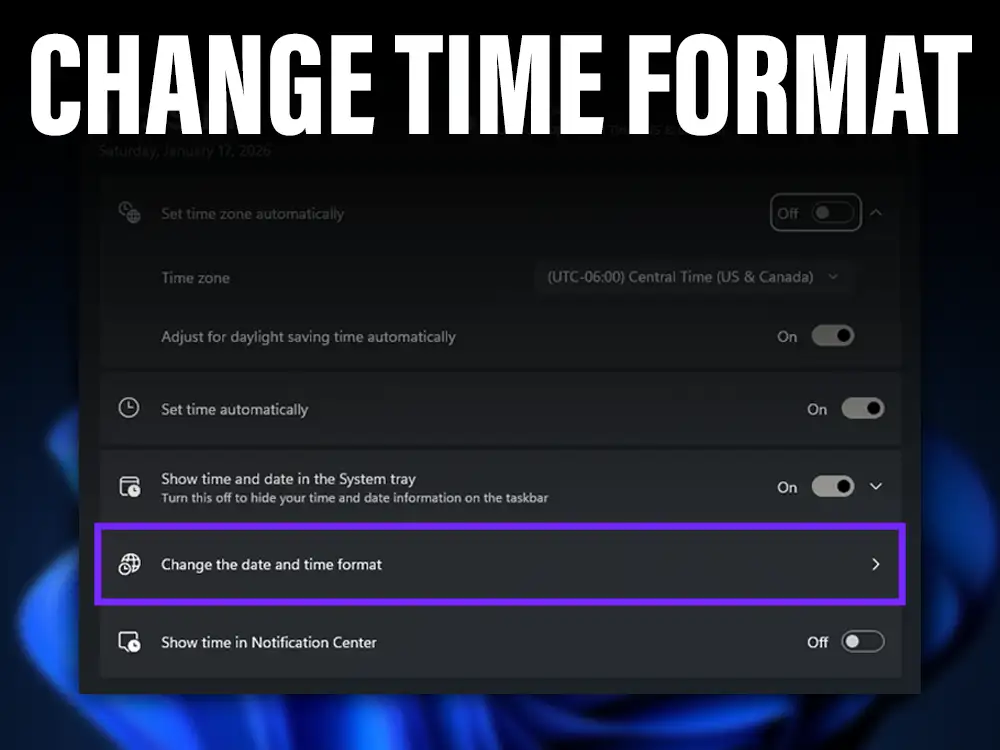
2. Open Change the date and time format
Now you will access the section that controls time format options.
- Scroll down and click Change the date and time format

- Make sure you are inside the correct format settings.

This section controls how time, date, and region formats appear in Windows.
3. Change time format from 12 hour to 24 hour
This is where you change the actual clock format.

- Find the time format options for short time and long time
- Choose HH:mm for 24 hour time or h:mm tt for 12 hour time

Your clock will update immediately after saving the changes.
4. Check the new time format on your Windows clock
Finally, confirm the changes worked.

- Look at the clock in the taskbar
- Make sure the time format matches your selection
- Restart your pc if the change does not appear right away
Your Windows clock now shows the new time format you selected.
Summary
To change time format in Windows, open date time settings, go to time and language settings, and adjust the regional time format. You can switch between 12 hour and 24 hour clock instantly on Windows 10 and Windows 11.
Troubleshoot
Time format did not change
Restart your PC or sign out and back in to refresh Windows clock settings.
Time and language settings not visible
Make sure Windows is fully updated, as older versions may hide these options.
Clock shows wrong region format
Check your region settings and make sure the correct country is selected.
FAQs
How do I change time format in Windows 11?
Right-click the clock, open date time settings, go to change the date and time format, and adjust the short and long time format.
Can I use 24 hour time on Windows laptop?
Yes, the 24 hour clock works on all Windows laptops and desktops.
Does changing time format affect system time?
No, changing the time format only affects how the clock is displayed, not the actual system time.