Introduction
If Bluetooth is not working on your Windows PC, the problem is often the driver. Reinstalling the Bluetooth driver using Microsoft’s official method can fix missing devices, connection errors, or Bluetooth not turning on. This guide shows you how to reinstall the Bluetooth driver on Windows the right way, using tools built into Windows and Microsoft’s support resources. You do not need third-party software to do this.
How to Reinstall Bluetooth Driver on Windows
This section walks you through the official Microsoft-approved steps to reinstall the Bluetooth driver safely.
- Open Device Manager to Find the Bluetooth Driver
First, you need to access the place where Windows manages drivers.

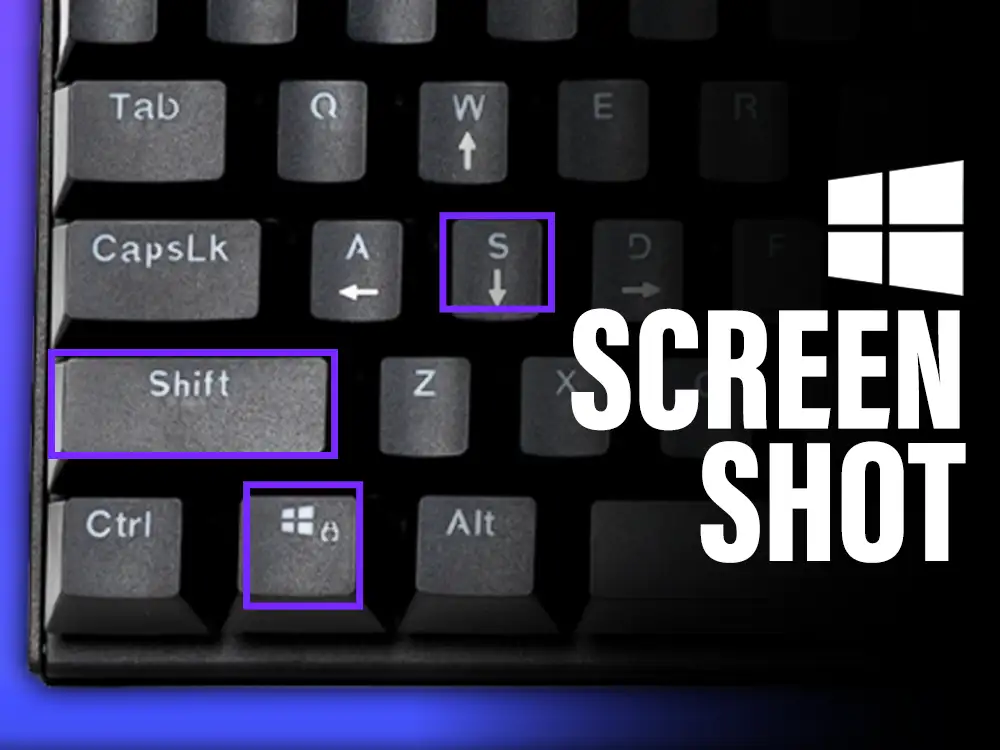
- Press Windows + X and click Device Manager
- Look for the Bluetooth section and expand it
- If you do not see Bluetooth, check Network adapters or Unknown devices
Once you locate the Bluetooth driver, you are ready to remove it.
- Uninstall the Bluetooth Driver
Now you will remove the current Bluetooth driver so Windows can reinstall it cleanly.

- Right-click your Bluetooth device (like Intel Wireless Bluetooth)
- Click Uninstall device
- Check the box that says Delete the driver software for this device if it appears
- Click Uninstall to confirm
After uninstalling, the driver will be fully removed from your system.
- Restart Your Computer to Reinstall the Driver
Windows will now reinstall the Bluetooth driver automatically.

- Restart your PC normally
- Wait for Windows to load fully after reboot
- Windows will detect the missing Bluetooth driver and reinstall it on its own
In most cases, Bluetooth will start working again after this step.
How to Install the Bluetooth Driver Manually (If Windows Does Not Reinstall It)
If Bluetooth does not come back after restarting, Windows may not be able to find the driver automatically. In this case, Microsoft does not provide one single universal Bluetooth driver download. Drivers are delivered through Windows Update or the Microsoft Update Catalog based on your hardware.

- Go to the Microsoft Update Catalog: https://www.catalog.update.microsoft.com
- In the search box, type Bluetooth driver along with your adapter name or Windows version
- Download the driver that matches your system (Windows 10 or Windows 11)
- Open the downloaded file and follow the on-screen install steps
If you are unsure which driver to pick, running Windows Update is still the safest option because it installs the correct Bluetooth driver automatically.
Summary
Reinstalling the Bluetooth driver on Windows is one of the fastest ways to fix Bluetooth problems. By uninstalling the driver in Device Manager and letting Windows reinstall it, most connection issues are solved. If needed, you can also install the Bluetooth driver directly from Microsoft for the most reliable results.
Troubleshoot
Bluetooth does not appear in Device Manager
This usually means the driver is missing or disabled. Restart your PC, check BIOS settings, and run Windows Update to restore Bluetooth support.
Bluetooth driver keeps failing to install
Make sure your Windows version is fully updated. Older Windows builds may not support newer Bluetooth drivers properly.
Bluetooth turns on but will not connect
Remove the paired device from Bluetooth settings and pair it again. Reinstalling the driver often fixes pairing issues.
FAQs
Does reinstalling the Bluetooth driver delete my devices?
Yes, paired devices are usually removed, but you can reconnect them after the driver is reinstalled.
Is it safe to reinstall the Bluetooth driver from Microsoft?
Yes, using Microsoft’s official drivers is the safest and most stable option.
Do I need third-party driver tools?
No, Windows and Microsoft Support provide everything you need to reinstall the Bluetooth driver correctly.