Knowing how to take a screenshot on PC is a basic but powerful skill. You can capture errors, save important information, or share what is on your screen in seconds. Windows includes several screenshot shortcuts and built-in tools like Print Screen, Snipping Tool, and Snip and Sketch. This guide explains how to screenshot on Windows in the easiest and most reliable ways.
How to Take a Screenshot on PC (Windows)
1. Take a full screenshot using Print Screen
This is the most common print screen shortcut on Windows.
- Press the Print Screen or PrtScn key on your keyboard

- The screenshot is copied to the clipboard
- Open Paint, Word, or any image editor
- Press Ctrl + V to paste and save the screenshot
This method is useful for quick screen shots, but the screenshot does not save automatically.
2. Screenshot on Windows with Windows key + Print Screen
This is the best option if you want a Windows screenshot saved instantly.
- Press Windows key + Print Screen together

- Your screen will dim for a moment
- The screenshot is saved automatically
You can find the image in Pictures > Screenshots. This print screen shortcut is ideal for beginners.
3. Screenshot one window using Alt + Print Screen
This method captures only the active window instead of the full screen.
- Click on the window you want to capture
- Press Alt + Print Screen

- Paste the screenshot into an image editor
- Save the image
This is helpful when you want clean screenshots without background clutter.
4. How to screenshot on Windows using Snipping Tool
The Snipping Tool allows you to select exactly what you want to capture.

- Press the Windows key and search for Snipping Tool

- Open the app and click New

- Drag to select the area you want

- Save the screenshot
This is one of the best ways to screenshot on a Windows laptop or desktop.
5. Screenshot shortcut with Snip and Sketch
Snip and Sketch comes built into Windows and lets you take screenshots quickly and easily.

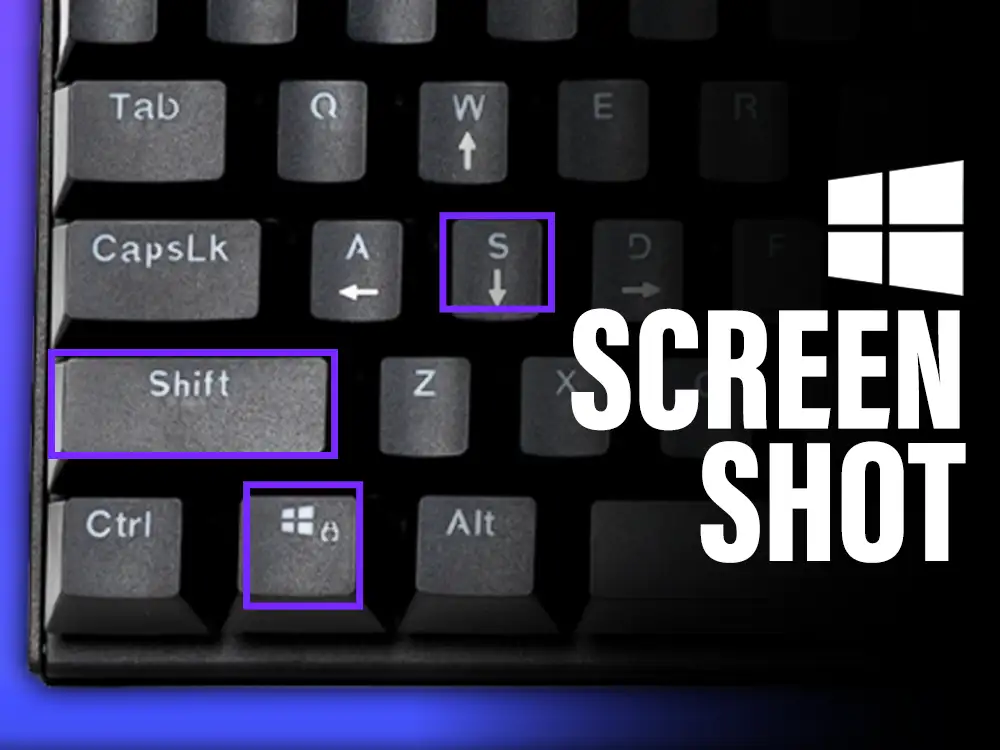
- Press Windows key + Shift + S

- Choose a screenshot mode from the toolbar
- Select the screen area
- The screenshot is copied to the clipboard
You can edit, mark up, and save the snapshot from the notification.
Summary
If you are wondering how to take a screenshot on Windows, you can use Print Screen, Windows key + Print Screen, Alt + Print Screen, Snipping Tool, or Snip and Sketch. These screenshot shortcuts work on both Windows PCs and laptops and cover everything from full screenshots to precise screen captures.
Troubleshoot
Print Screen shortcut not working
Some laptops require pressing Fn + Print Screen. This is common on Windows laptops.
Screenshot not saving automatically
Only Windows key + Print Screen saves screenshots by default. Other screen shot methods use the clipboard.
Snipping Tool or Snip and Sketch not opening
Make sure Windows is updated and restart your PC if the screenshot tool does not launch.
FAQs
How do I screenshot on a Windows laptop?
You can screenshot on a Windows laptop using Print Screen, Windows key + Print Screen, or Windows key + Shift + S.
Where are Windows screenshots saved?
Windows screenshots are saved in Pictures > Screenshots when using the Windows key + Print Screen shortcut.
What is the best screenshot shortcut on Windows?
Windows key + Shift + S is the most flexible screenshot shortcut because it lets you capture any part of the screen.